
Yahoo!Messenger for web(referred to as WebMessenger in this post) is a web-based messenger released officially by Yahoo Kimo. WebMessenger comes with a variety of built-in languages, including Traditional Chinese. On top of that, WebMessenger automatically saves your chat history. The only catch is that WebMessenger requires Flash to work, and it doesn't support multi-person conferences. Still, overall WebMessenger is pretty handy — for a while, whenever my computer didn't have a messenger installed, I just used the online messenger on the WebMessenger site.
URL http://webmessenger.yahoo.com/.
1. WebMessenger Login Tutorial
1. First, go to WebMessenger. When you first arrive it will be in English, but you can click the Chinese link at the bottom of the page and it will switch to a Chinese interface.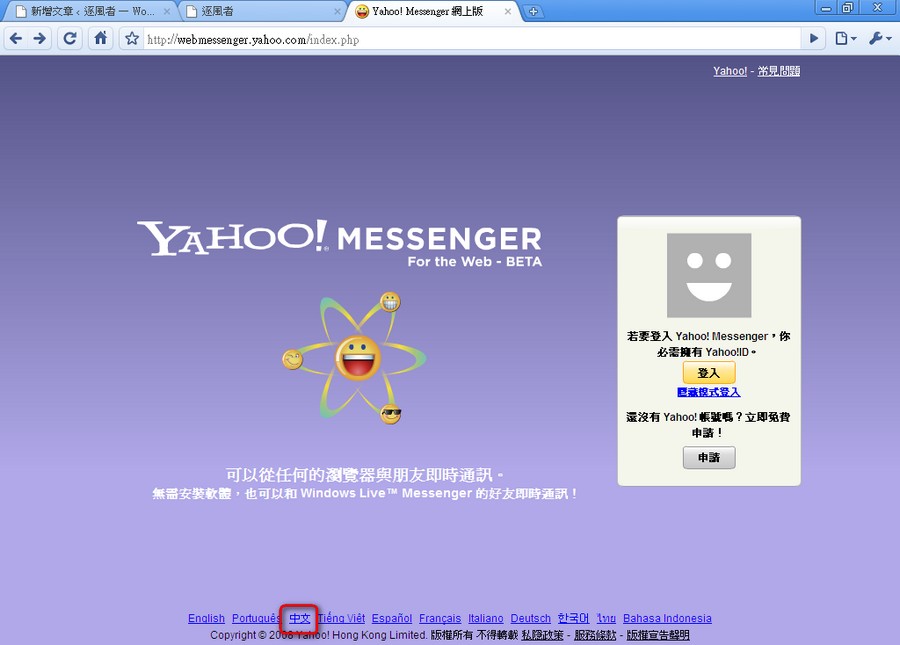
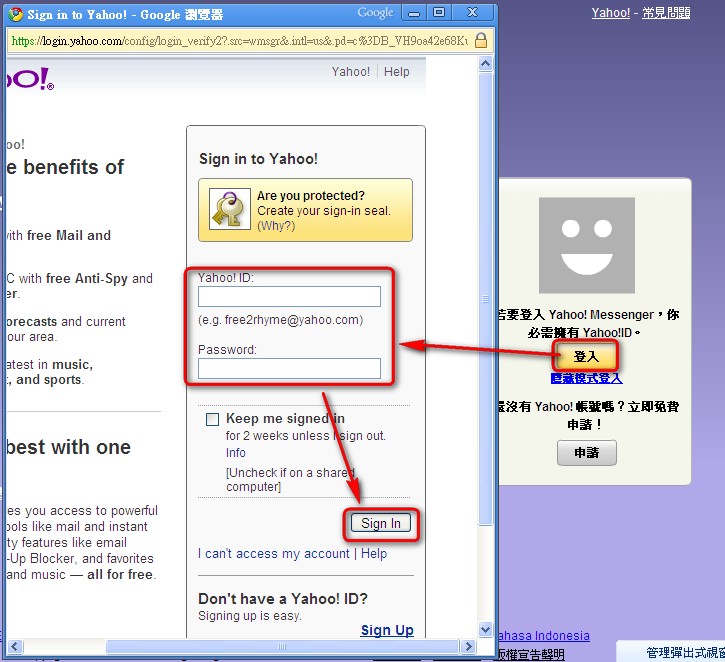
- After switching the interface to Chinese, click Sign in on the right, then enter your account and password in the pop-up window (please turn off any pop-up blockers), and click Sign in.
- Signing in……………
- Login successful XD
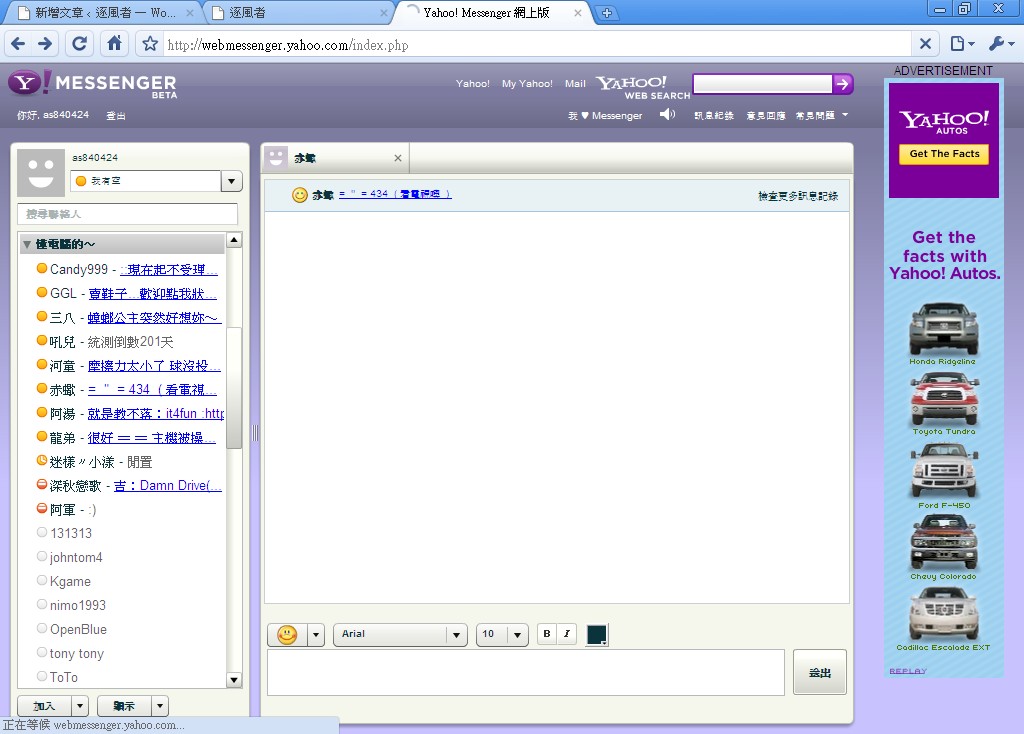
2. Adding Contacts
Adding a contact is very simple: click Add at the bottom of the left-hand column, then choose the other person's account type (Yahoo Messenger or MSN), and enter their account name.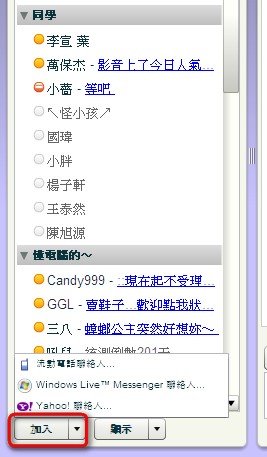
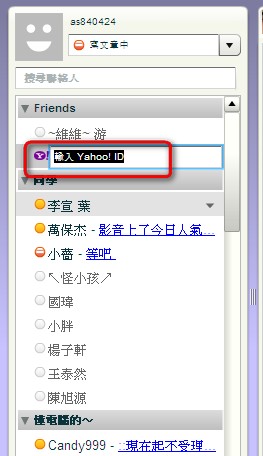
3. Categorizing, Removing, Renaming Contacts, and Viewing Message History
I'm covering these three features together because categorizing, removing, and renaming contacts all work the same way. First, move your mouse over the name of the contact you want to categorize, delete, or rename, and a small arrow will appear. Click it with the mouse and a menu with these three options will pop up~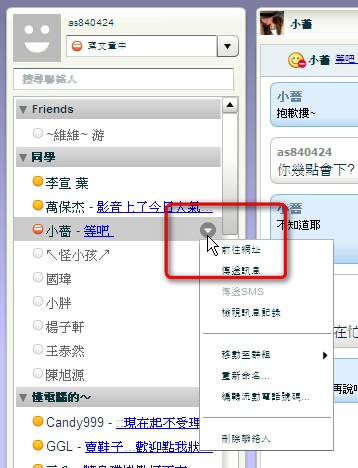
4. Setting Whether Conversations Are Recorded
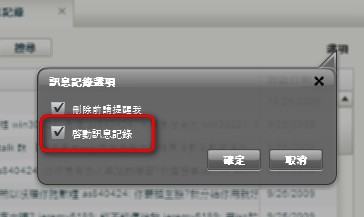
1. Click Message History in the top right, then click Options in the message history.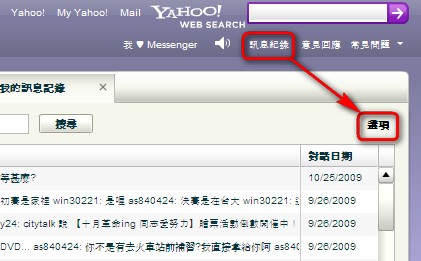
- The second option lets you set whether history is saved.
That’s the end of this tutorial~~~~