I think many people are like me: when building a web page, they don’t like dragging out the layout directly in DW, and instead prefer to open Notepad and write the HTML by hand~ The upside of this approach is that it sharpens your skills XD, but the downside is that development is a bit slow (actually, once you get used to working this way, you’re faster than you would be with DW… XD). Today I want to introduce Zen Coding to you — it can make you write web pages N times faster! You can write web pages directly using CSS-style syntax~
Why do I say Zen Coding speeds up writing HTML? Watch the video below and you’ll understand how powerful it is!
Zen Coding Quick Facts
- Official website: http://code.google.com/p/zen-coding/
- Supported editors: Notepad++, PSPad, UltraEdit, Dreamveaver, Visual Studio, and more
- Cheat sheet: Official download|Google|Dropbox|4Shared
- Downloads: http://code.google.com/p/zen-coding/downloads/list
How to Use
I’ll use Notepad++ as the example here. The shortcuts in other editors aren’t necessarily the same as Notepad++’s, so please check the Wiki on the official site (http://code.google.com/p/zen-coding/w/list) or read the information shown after installation.
- First download the Zen Coding made for Notepad++ and install it.
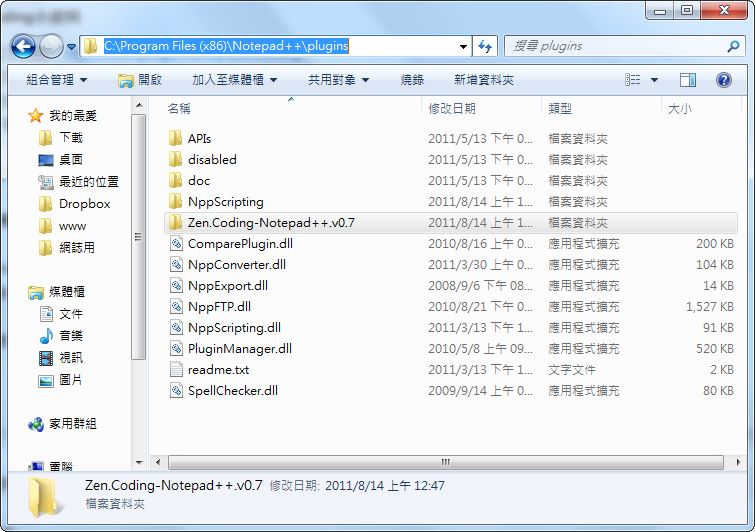
- Open Notepad++ and you can start following the cheat sheet~ Also, the expand shortcut in Notepad++ is “Ctrl+E”; press it to expand the short code into HTML. Here are some common usages:
- Generate a div tag with id=a: #a
- Generate 10 li tags: li*10
- Generate 10 li tags with class=an incrementing number: li.$*10
- Generate a ul and then generate 5 li tags: ul>li*5
Those are the common usages, but the cheat sheet has many more. Besides generating HTML, it can do CSS too~ First create a style tag, then type keywords inside the style tag and CSS is generated instantly~
- Quickly generate "float:;": fl
- Quickly generate "float:left;": fl:l
- Quickly generate "display:none;": d:n
- Quickly generate "margin:auto;": m:a