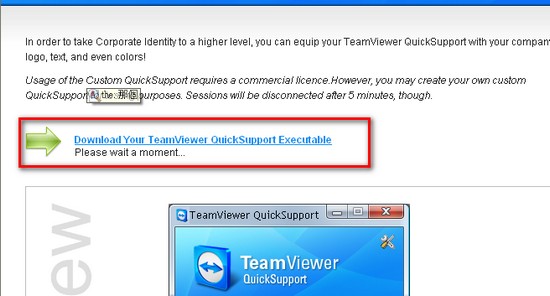
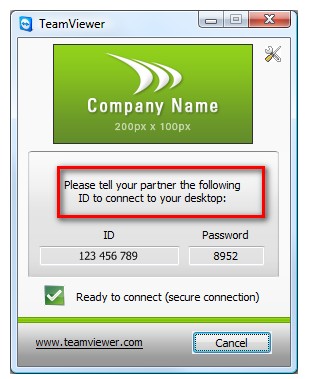
TeamViewer is a very convenient remote control program. Its biggest feature is that it can get past firewall restrictions, so you can still use it even if your computer has a firewall. I think TeamViewer probably works by first connecting to its server and then connecting to the controlled computer, but that would be quite costly. In addition, TeamViewer offers a special feature: you can customize a “TeamViewer of your own.” This is a service provided on the official website, and it lets you replace the logo with your own. Amazing, right!
1. TeamViewer Information
- Type: Free program, remote control
- Download links: Xun6 | 4Shared | Box.net | Official download
- Virus scan report: VirusTotal
- MD5: a745f4c1d7d990d04adac56ceb68edc0
- (Besides the versions above there are many others, such as the MSI-specific version. For details, please check the download page on the official website.)
- View system information of the controlled computer
- Set the resolution of the controlled computer
- Built-in recording
- Built-in function to swap the host and controlled sides
- More detailed access control settings
- Password length settings
- Direct connections without going through the TeamViewer server
.
2. TeamViewer Versions
Full version: As the name suggests, this is the version that supports all of TeamViewer's features. It is more troublesome to configure, but it lets you control the connection speed and set more detailed options, such as whether to keep the desktop during a connection.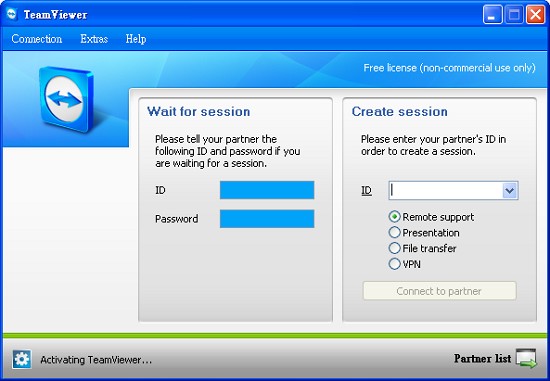
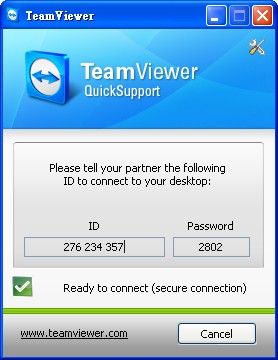
Simple version: A program that only has remote control functions. No adjustment is needed (and none is possible). Also, the simple version cannot control other people’s computers; it can only be controlled by others.
3. Making a Personalized TeamViewer
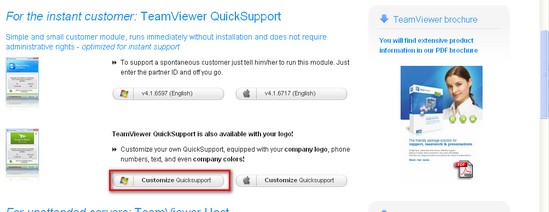
A personalized TeamViewer means you can put your own logo on TeamViewer. However, this only works for TeamViewer QuickSupport (the version that others can connect to); the other versions do not support it, and the method does not work for them either. Just follow the tutorial below.- Prepare an image of 200*100 pixels (it can be JPEG, BMP, or GIF). Then go to the download page of TeamViewer. Scroll down a little and you will see the line “For the instant customer: TeamViewer QuickSupport.” Click Customize Quicksupport under this line.
- On the settings page of the personalized TeamViewer, fill in the relevant information, then upload the image you prepared earlier.
Explanation of the labels:
- Language: keep the default value.
- Title: The title of TeamViewer, shown at the top of the program
- Text: appears in the personalized TeamViewer content
- Logo: upload your logo.
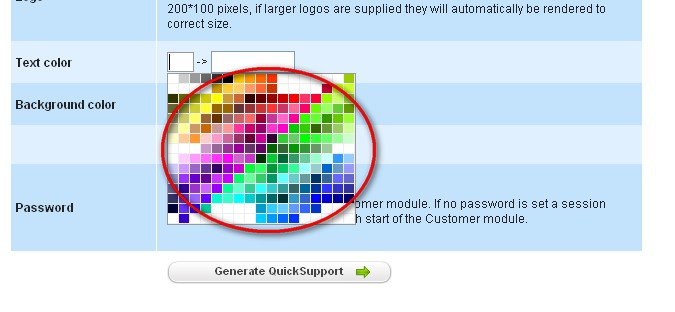
Text color: sets the text color. Click the box to bring up the color picker.
Background color: sets the background color. The method is about the same.
Leave the rest of the settings as they are, then click “Generate QuickSupport.”
- Click the button inside the red box to download it.